
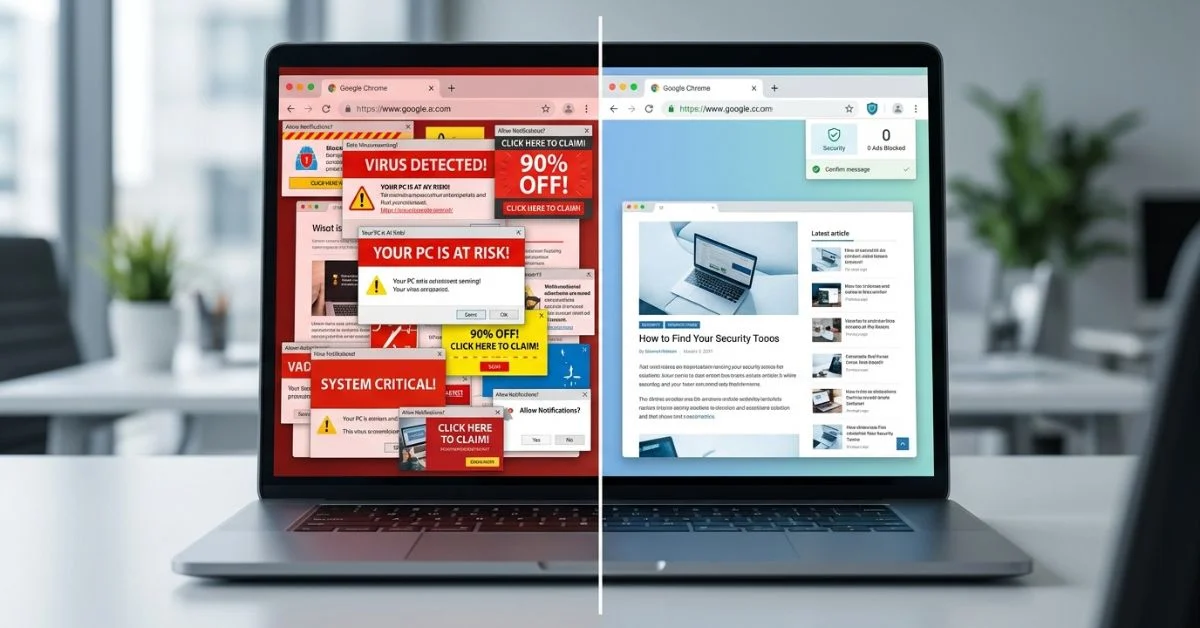
Pop-up ads can make browsing slow and annoying. In this guide, you will learn simple ways to stop pop-up ads on Chrome. We will cover desktop, Android, notifications, redirects, and bad extensions. By following these steps, you can fix your browser and enjoy a faster, cleaner web experience.
Why Pop-Up Ads Keep Appearing
Knowing the cause is the first step to fixing it. Here is why you might still see ads even if you think you have blocked them:
- Accidental permission: You may have clicked “Allow” on a site that asked to show pop-ups or alerts. Once you click this, the site saves a rule that allows it to show you ads at any time.
- Adware: This is unwanted software that can add ads to your browser. It often hides in your system and forces your browser to show ads that are not part of the website you are visiting.
- Bad extensions: Some add-ons can show extra ads while you browse. Even if they claim to be useful tools, some are built only to show you ads or track your data.
- Old cache: Chrome may keep old data that makes old settings stay active. Sometimes, these saved files prevent your new block settings from working.
- Redirects: Some sites try to send you to another page full of ads. These are designed to jump your browser to a new site without you clicking on anything.
Stop Pop-Ups in Chrome Fast
To stop pop-up ads in Chrome, go to Settings > Privacy and security > Site settings > Pop-ups and redirects, then choose Don’t allow. Also check Notifications and remove any site you do not trust.
Turn On Chrome’s Pop-Up Blocker
Chrome’s built-in blocker is the first thing to use. Follow these steps:
- Open Chrome and click the three dots at the top right.
- Select Settings from the menu.
- On the left side, click Privacy and security.
- Choose Site settings.
- Scroll down and click Pop-ups and redirects.
- Select Don’t allow sites to send pop-ups or use redirects.
This blocks most normal pop-up ads right away. If you still see ads, it means they might be coming from other settings or software.
Block Redirects in Chrome
Redirects happen when a page sends you to another site. When you turn on this setting, Chrome blocks most of these jumps. This helps keep you on the page you meant to open.
Check Notifications and Site Permissions
Many ads are really alerts from websites you allowed by mistake. These alerts can show up even when Chrome is closed, sending you fake news, offers, or updates. Checking your permissions is one of the fastest ways to stop them.
Check Notifications on Desktop
Go to Settings > Privacy and security > Site settings > Notifications. You will see a list of websites. If you do not trust a site, remove it or block it. Removing a site from this list stops it from sending you any more pop-ups.
Stop Notification Ads on Android
On your phone, open the Chrome app. Tap the three dots and go to Settings > Site settings > Notifications. Review this list carefully. If you see a site sending unwanted alerts, tap it and select Block or Remove.

Desktop vs. Android Steps
Chrome works almost the same on desktop and Android, but the menus look different.
- Desktop: The menus are in the top right corner, and Settings open in a new tab. This makes it easy to change multiple settings at once.
- Android: Everything is inside the app. Tap the three dots, then Settings.
Blocking a site on your computer does not always block it on your phone. That is why it helps to check both devices to ensure your browsing remains private and ad-free.
Remove Bad Extensions
Some extensions can show extra ads on your pages. Some of these act like unwanted ad software. You should only keep extensions that you trust and use every day.
An extension is a browser add-on that changes how your pages look or work. While many are helpful, some are built to force ads into your feed.
- Type
chrome://extensions/in your address bar and press Enter. - Look at every extension on your list.
- If you see one you do not remember installing, or one with a name you do not recognize, click Remove.
- If an extension says it blocks ads but still shows ads, remove it.
Scan for Adware
If pop-ups continue, your computer may have unwanted software on it. This is often called adware. It can change your search engine or open new tabs by itself.
Signs of a problem
Watch for these signs:
- Your search engine changes on its own.
- New tabs open by themselves while you browse.
- You keep getting sent to strange websites.
How to fix it
Use a trusted scan tool to check your device for unwanted software. A scan can find and remove hidden unwanted software. Once the scan is done, restart Chrome to make sure the changes take effect.
Pick a Safe Ad Blocker
An ad blocker is an extra tool that stops ads that the browser might miss.
- Choose wisely: Only get blockers from the Chrome Web Store.
- Check reviews: Look for blockers with strong ratings.
- Avoid unknown tools: Skip any blocker that asks for too much access.
- Fix broken sites: Pause the blocker for that site only if needed.
Ad blockers work by telling your browser to ignore certain parts of a webpage. Sometimes, they can break a site, such as making a button stop working or hiding an image you need. If this happens, you can usually pause the blocker just for that one page.
Fix Chrome Ads That Keep Returning
If you have tried all the steps above and ads are still there, follow these final fixes.
Update Chrome
Always update Chrome to the latest version. Updates can fix bugs and make Chrome safer. Go to Settings > About Chrome to check for updates.
Clear site data
Old saved data can sometimes cause issues. Go to Settings > Privacy and security > Clear browsing data. Select “Cached images and files” and click Clear data. This forces Chrome to load sites fresh.
Reset Chrome settings
If nothing works, reset Chrome settings. This restores the browser to its original state. It will not delete your bookmarks, but it can turn off extensions and clear bad settings.

When Chrome Settings Are Not Enough
If you still see ads after following every step here, check the apps installed on your computer. Some unwanted apps can add toolbars, change search settings, or show more ads. Look for programs you do not remember installing, especially those labeled as “search assistants,” “shopping tools,” or “toolbars,” and uninstall them from your computer’s main settings menu.
Frequently Asked Questions
Why do pop-up ads keep coming back?
It is usually because a site still has permission to show alerts, or you have an extension that is adding ads.
How do I stop one website from showing ads?
Click the icon to the left of the website address, click Site settings, and set Pop-ups and Notifications to Block.
Is Chrome’s pop-up blocker enough?
Yes, it blocks most pop-ups. If you see more, it is usually because of notification permissions.
Do I need an ad blocker too?
You do not need one, but it helps stop extra ads. Just pick one you trust.
Why am I getting notification ads?
You likely clicked “Allow” on a website that is now sending you ads instead of news.
What if these steps do not stop the ads?
You may have a deeper virus or malware. Run a full scan with a trusted security tool to find it.
Can pop-up ads be caused by a virus?
Yes, some viruses or malware are designed specifically to force your browser to show ads.
Why do notifications keep coming back?
If you do not remove the site from your notification permissions list, it will continue to send you alerts.
Should I reset Chrome first?
No, reset it only if other steps fail, as it will disable your extensions and clear your temporary settings.
Recommended For You:
Why Is Google Chrome So Slow? 15 Causes and Fast Fixes
How to Check if Your Computer Has a Virus
Disclaimer:
This article is for informational and educational purposes only. We are not responsible for any changes to your device settings. Some images may be AI-generated for illustrative purposes. All copyrights and trademarks belong to their respective owners. Please use these steps at your own risk.

Ethan Rowe is a seasoned content creator and writer with a passion for exploring technology, celebrities, lifestyle, and pop culture. He combines research-backed insights with an engaging style to deliver informative, easy-to-read articles. Ethan is committed to providing accurate, trustworthy content that helps readers make smart decisions and stay informed.