
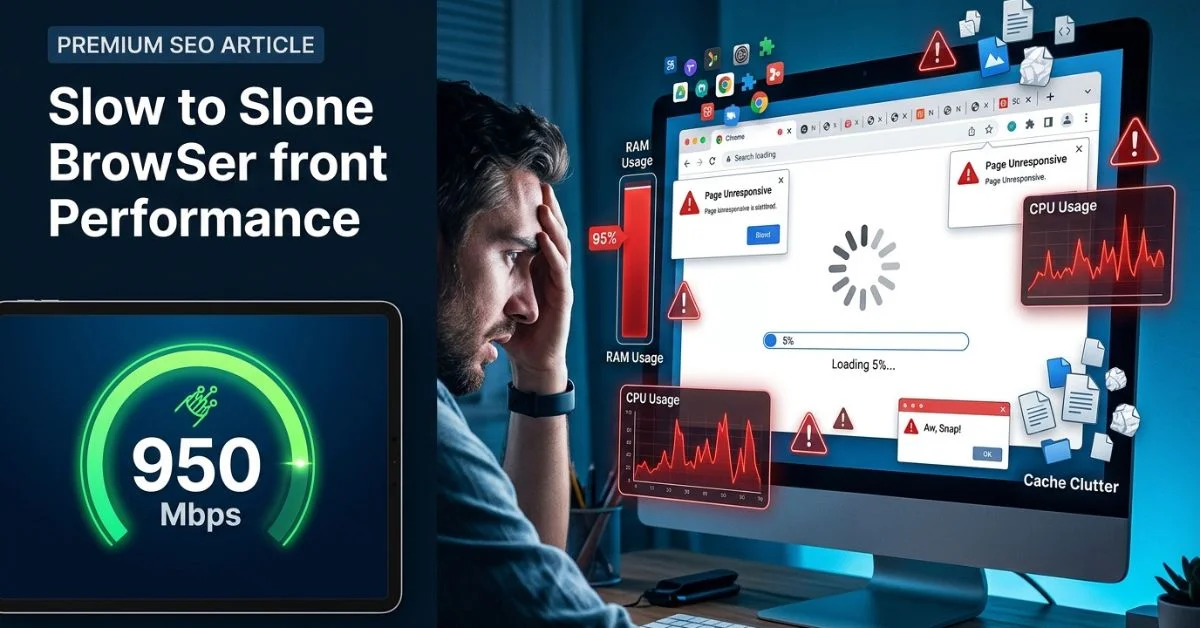
Why is Google Chrome so slow? Chrome is usually slow because it uses a lot of memory. Too many tabs, heavy extensions, old cache files, or an old version can all make it slower. In this guide, you will learn simple fixes for Windows, Mac, and Android to make your browser feel fast and new again.
Why Chrome Is So Slow
Google Chrome is usually slow because it uses a lot of memory. It can get overloaded by too many tabs, heavy extensions, old cache files, or an old software version. When you open a page, Chrome creates a new process for almost every part of that page. This uses up your device’s power very fast. If Chrome feels slow, start by closing tabs, clearing cache, and disabling unused extensions.
Common causes include:
- Too many tabs: Each tab uses its own memory, which adds up quickly.
- Heavy extensions: Add-ons that run in the background drain your system resources.
- Old cache files: Browsing data that stays too long can cause loading errors.
- An old Chrome version: Using outdated software can create bugs that make the app feel sluggish.
Even with fast internet, Chrome can still feel slow if the browser or device is overloaded with too many tasks at once.
Quick Fixes First
Close Extra Tabs
Every open tab uses memory on your device. Even if you do not use a tab, it can still run in the background and slow Chrome down. Close the windows you do not need right now to free up memory. Keeping only a few tabs open at a time is the best way to keep your browser fast.
Restart Chrome
Restarting Chrome can clear temporary problems and make it work better. Close the browser fully and wait a few seconds before opening it again. This simple step often helps Chrome stop freezing and clears out “stuck” processes that were eating your CPU power.
Update Chrome
Chrome updates often fix speed problems and bugs. Click the three-dot menu, go to Help, and click About Google Chrome to update it. Keeping the app updated ensures you have the latest performance patches.
Clear Cache and Cookies
Old cache and cookies can slow page loading and cause small errors. Go to Settings > Privacy and security > Clear browsing data to remove these files. Clearing this data helps Chrome start fresh when loading your favorite websites.
Extensions Causing Lag
Find Heavy Extensions
Some extensions, like ad blockers, screen recorders, and shopping tools, use a lot of memory. These add-ons can slow down every page you open because they must check the content before you see it.
Disable One by One
Go to Extensions > Manage Extensions. Turn off your add-ons one at a time and test the browser speed. This helps you find which extension is slowing Chrome down. If the speed jumps up after you disable one, you have found the problem.
Remove Unused Add-ons
If you do not use an extension every day, remove it. Keeping only the tools you need makes the browser run faster because it does not have to manage extra code. Most people have many old extensions they forgot about; deleting them is a great way to boost speed.
Chrome Settings To Change
Turn On Memory Saver
Chrome has a Memory Saver mode in its Performance settings. This setting puts unused tabs to sleep and frees memory for the tabs you are using. It is a very effective tool for those who keep many tabs open.
Check Energy Saver
If you use a laptop, turn on Energy Saver mode. It helps Chrome use less power and run more smoothly. It limits background activity, which keeps your computer from working too hard.
Review Background Apps
Chrome can still run in the background after you close it. Go to Settings and turn off “Continue running background apps” to stop this. This prevents Chrome from using your RAM even when the window is closed.
Test Hardware Acceleration
This feature helps Chrome use both your CPU and GPU to render pages. Turn this setting on or off in the System menu to see which one is faster. For some older computers, turning it off can actually stop video stuttering.

Chrome Slow After Update
Check For Buggy Updates
Sometimes a new Chrome update can make Chrome feel slower. If Chrome becomes slow after an update, restart it first and check for the next update. Developers often release small “fix” updates quickly to address these issues.
Relaunch Chrome
Sometimes an update needs a full restart to work right. Close all tabs and reopen the browser to finish the update. A clean restart forces the browser to apply all changes properly.
Test In Incognito
Open an Incognito window to check if an extension is causing the problem. If Incognito is faster, an extension or setting is likely the cause. Since Incognito mode does not use your saved data or most extensions, it is a perfect way to test if the “base” browser is the issue.
Profile Or Data Problems
Try A Fresh Profile
A broken Chrome profile can make the browser slow again and again. Add a new user profile in the top-right menu to see if the browser works better. If the new profile is fast, your old profile was likely corrupt.
Reset Chrome Settings
Resetting Chrome can fix bad settings without removing bookmarks. This returns the browser to its original state. It is a powerful way to undo changes that might be causing lag.
Reinstall Chrome If Needed
If nothing works, reinstall Chrome. This deletes all faulty files and gives you a clean slate.
Device Issues
Low RAM Or High CPU
Chrome uses a lot of your device’s memory and power. If your computer has low RAM, Chrome may feel slow. Try closing other apps that are also using your memory, like games or video editors.
Slow Storage
An old hard drive can make Chrome open and load pages more slowly. An SSD can help Chrome open and load pages faster. Solid-state drives are much quicker at reading the files that Chrome needs to run.
Antivirus Or Security Conflicts
Some antivirus tools can slow Chrome by checking too many files. You can test whether your antivirus is the problem by turning it off briefly. If your speed improves, you may need to add Chrome to your “exceptions” list in your security settings.
Check Network Vs Browser
If your internet is fast but Chrome is slow, the problem is usually in the browser, device, or settings. Ensure your router is close by and that other devices in your home are not taking up all your bandwidth.
Why Chrome Feels Slow On Fast Internet
Browser Bottlenecks
Loading a page is more than just internet speed. Chrome must load code, images, and page parts before a site fully opens. If Chrome is overloaded, fast internet will not help much. The browser is the “engine” that builds the page; if the engine is tired, it cannot go fast.
Site-Specific Slowdowns
Some websites have too much code or too many trackers. Test different sites; if only one is slow, the website is the problem. Websites that run many ads or large scripts are often the ones that feel the slowest.
DNS Or Background Software
Slow DNS or heavy background apps can also make pages open slowly. DNS is like a phone book for the internet; if your “phone book” is slow, it takes longer to find the website you want.
Device-Specific Fixes
Chrome Slow On Windows
Check your startup apps and turn off the ones you do not need. Then restart your PC and test Chrome again. Sometimes apps like cloud storage or chat programs start with Windows and compete with Chrome for resources.
Chrome Slow On Mac
Mac users should check Memory Pressure in Activity Monitor and close apps that use too much memory. Mac computers also have a built-in feature that puts apps to sleep, so ensure your OS is updated to help manage this.
Chrome Slow On Android
Clear the Chrome app cache and make sure the app is updated in the Play Store. Also close tabs you do not need. Mobile devices have less power, so keeping your tabs to a minimum is essential.

Final Verdict On Chrome Speed
Chrome works best when you keep it updated and remove things you do not need. Start with extensions, cache, and Memory Saver to see faster results. Test each fix one by one to find the real problem and make Chrome faster. Try the steps one by one and test Chrome after each one to find the best speed for you.
PAA Questions
Why Is Chrome So Slow Right Now?
Chrome is often slow because of cache, extensions, or a recent update.
How Do I Fix Chrome Slowness?
Start by closing tabs, disabling bad extensions, and turning on Memory Saver.
Why Is Chrome Slow If My Internet Is Fast?
Chrome becomes slow when your RAM or CPU is overloaded.
Is There A Faster Browser Than Chrome?
Some browsers use less memory, but Chrome can still be fast after a few simple fixes.
Should I Reset Chrome?
Yes, if other fixes fail, a reset often clears out deep settings errors.
Does Chrome Use Too Much RAM?
Yes, Chrome uses a lot of RAM to keep tabs ready, but you can manage this with the Memory Saver setting.
Recommended For You:
How to Check if Your Computer Has a Virus
How to Remove Malware From a Windows PC
Disclaimer
This article is for informational and educational purposes only. It is not professional technical support. We are not responsible for any data loss or hardware issues. Some images may be AI-generated for illustrative purposes. All copyrights and trademarks belong to their respective owners. Please consult a professional if you have serious device concerns.

Ethan Rowe is a seasoned content creator and writer with a passion for exploring technology, celebrities, lifestyle, and pop culture. He combines research-backed insights with an engaging style to deliver informative, easy-to-read articles. Ethan is committed to providing accurate, trustworthy content that helps readers make smart decisions and stay informed.